
⚡️ How to Create a Glow-Loop Button in Framer
Framer Features
🧱 Step 1: Basic Button Structure
Add Text → e.g. “Get Started”
Wrap it in a Stack
Padding:
12px(top/bottom),24px(left/right)Background:
#000000(black)Text color:
#FFFFFF(white)
Name this stack:
Button
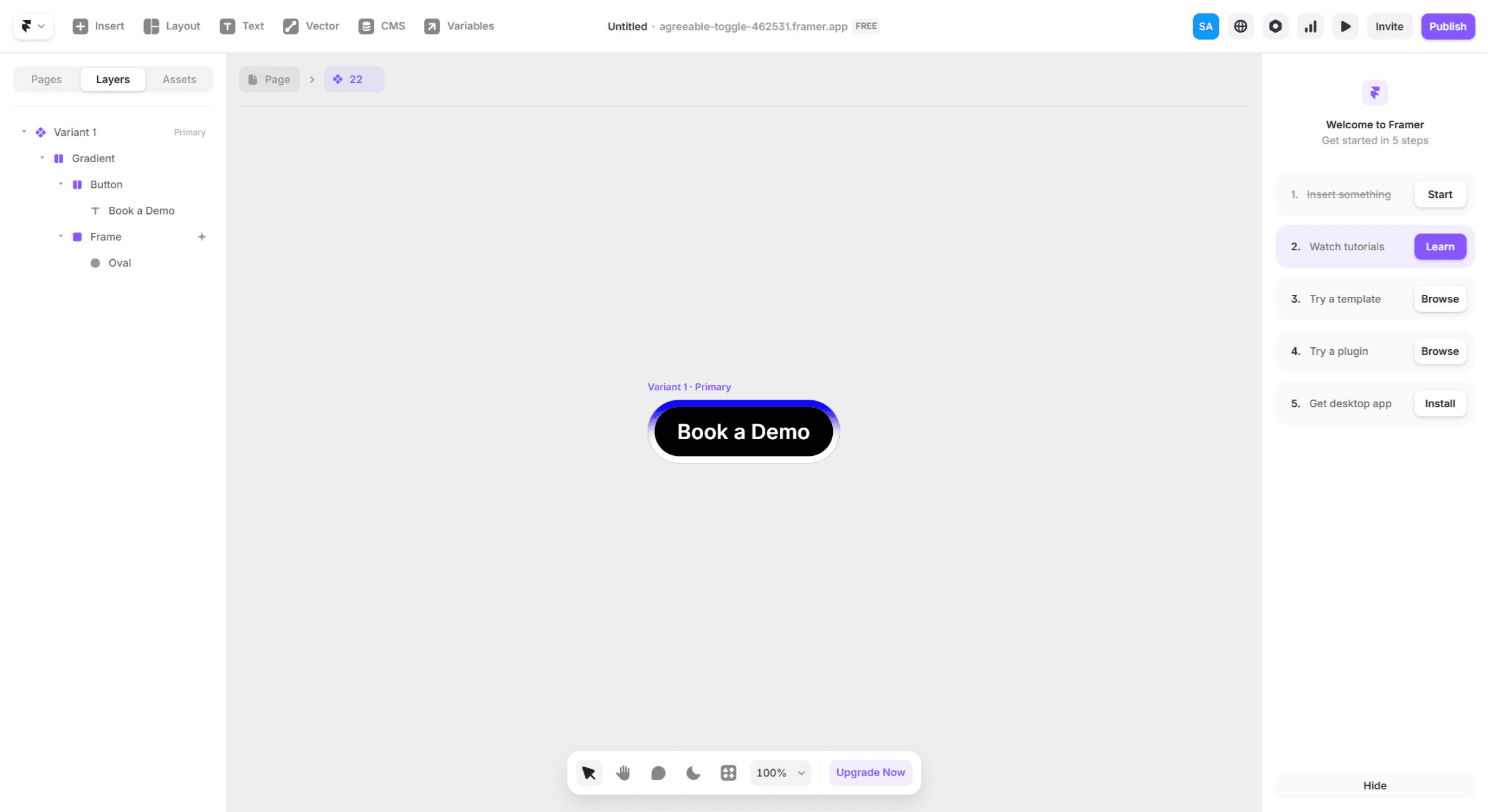
✨ Step 2: Glow Animation Layer
Wrap the
Buttonstack inside another StackPadding:
4pxto6pxall aroundThis will hold the animation/glow effect
Name this outer Stack:
Glow Wrapper
Inside
Glow Wrapper, add a CircleMake it larger than the button
Extend it to fill the entire outer stack
Add a gradient fill or soft colored glow
🧩 Step 3: Layer Management
Z-Index: Increase
Buttonstack’s Z-index so it sits above the circle glow.
🎥 Step 4: Animate the Glow
Select the circle
In the Effects panel:
Add Loop animation
Set rotation to
360°Let it auto-play infinitely
✅ Result
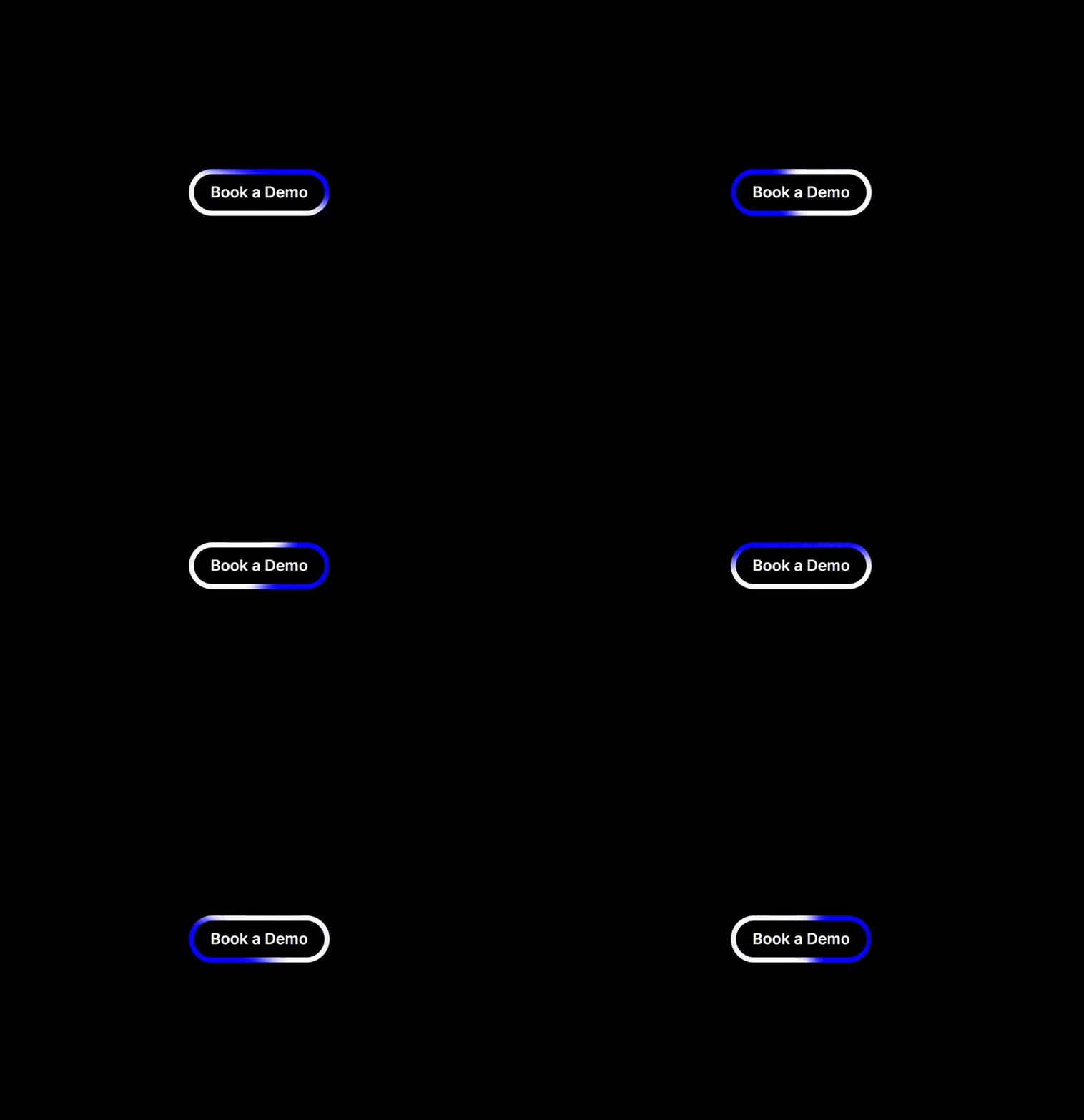
You’ll now have a clean black button with white text, surrounded by a rotating glow loop — perfect for call-to-action buttons on tech/SaaS sites.
Building in public? Got a SaaS site?
Drop your URL — I’ll give you a free UX teardown.
Or DM me for a 3-min Loom breakdown.
—
Syed
UX Designer | UXcelerate Studio
uxceleratestudio.com